

SSO with Entra ID
Log in to add to favouritesPage last updated 02 April 2025
Log into Entra ID
- Login to Entra ID https://entra.microsoft.com/.
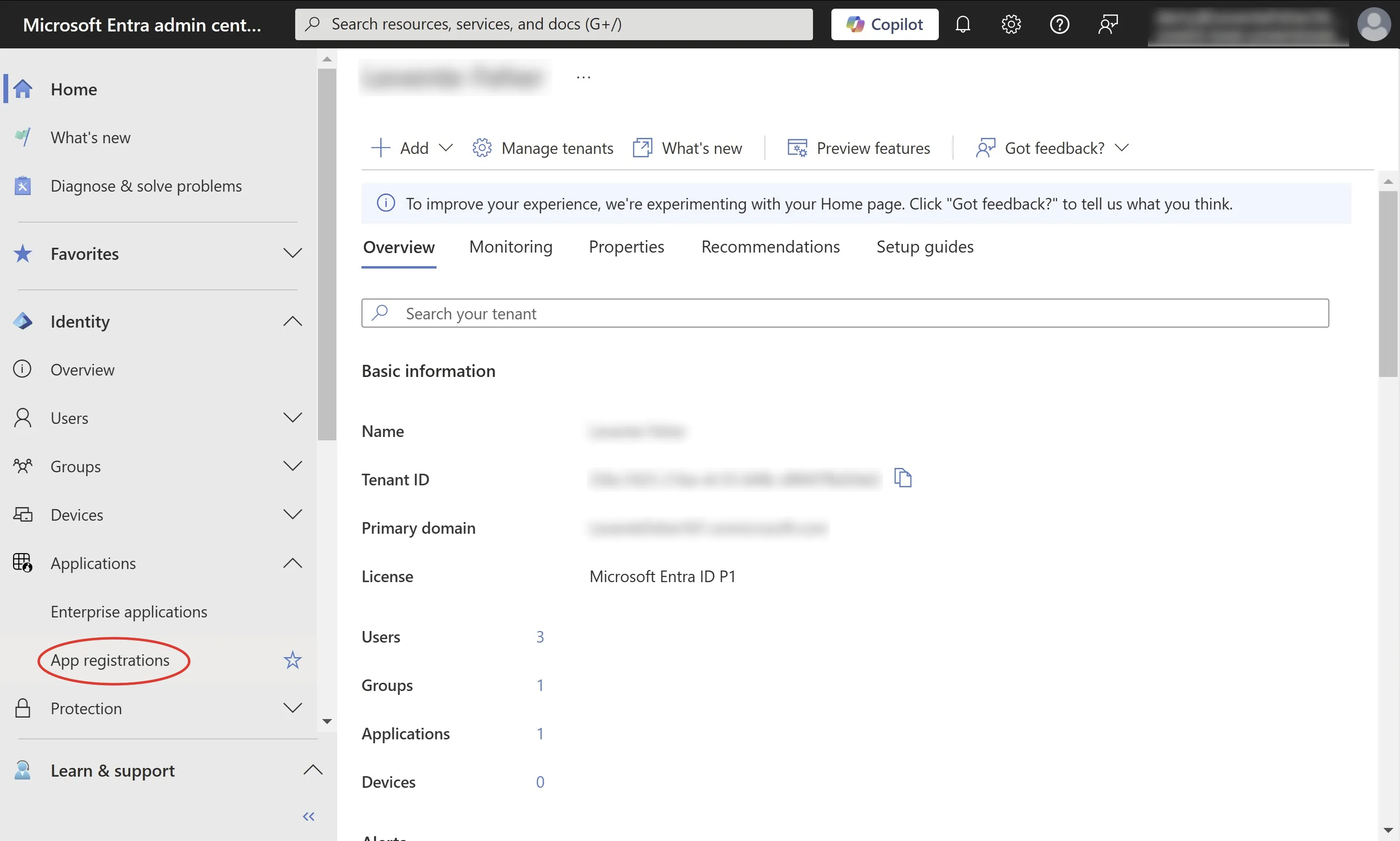
- In the Sidebar select Identity > Applications > App Registrations.
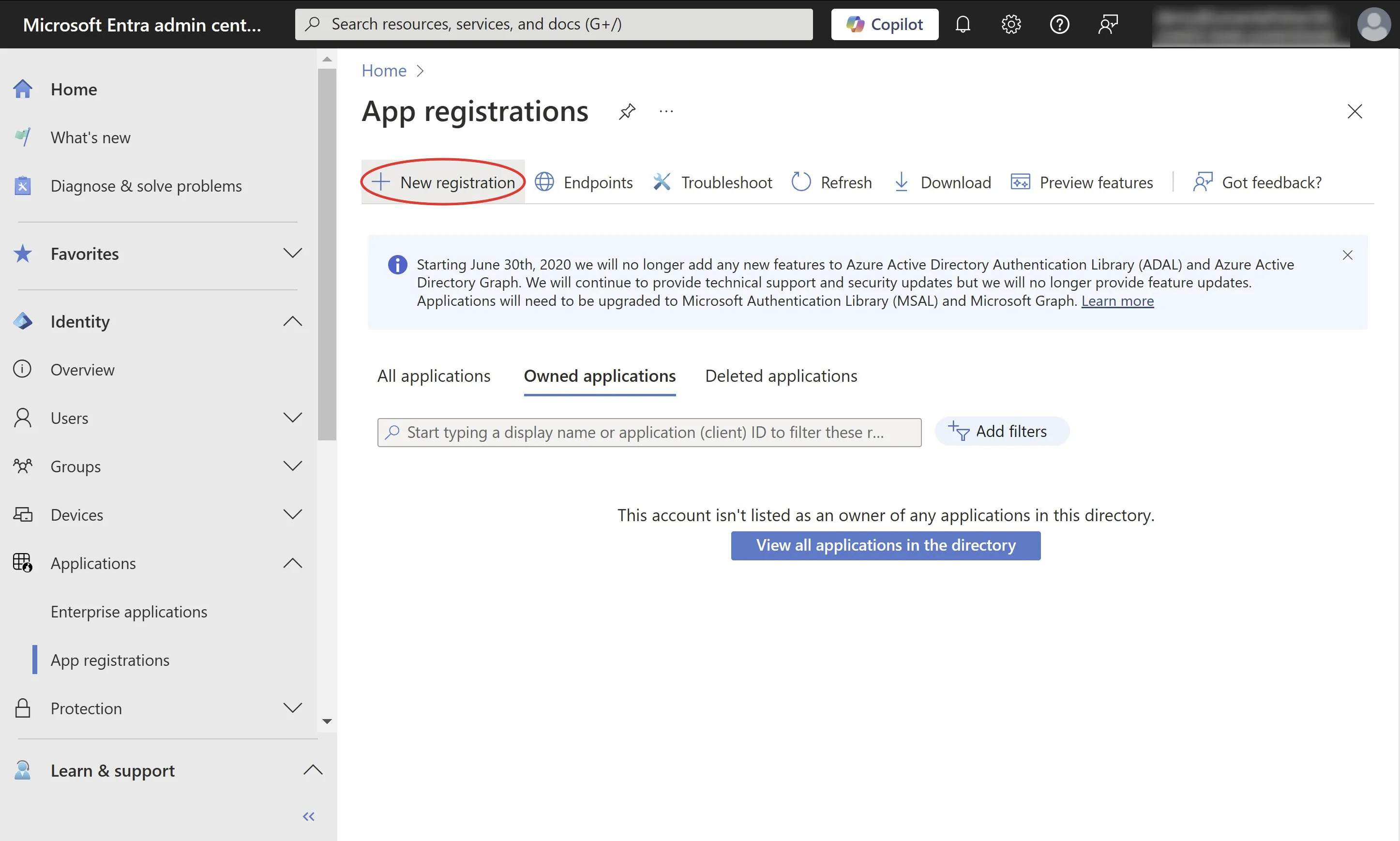
- Click New registration.
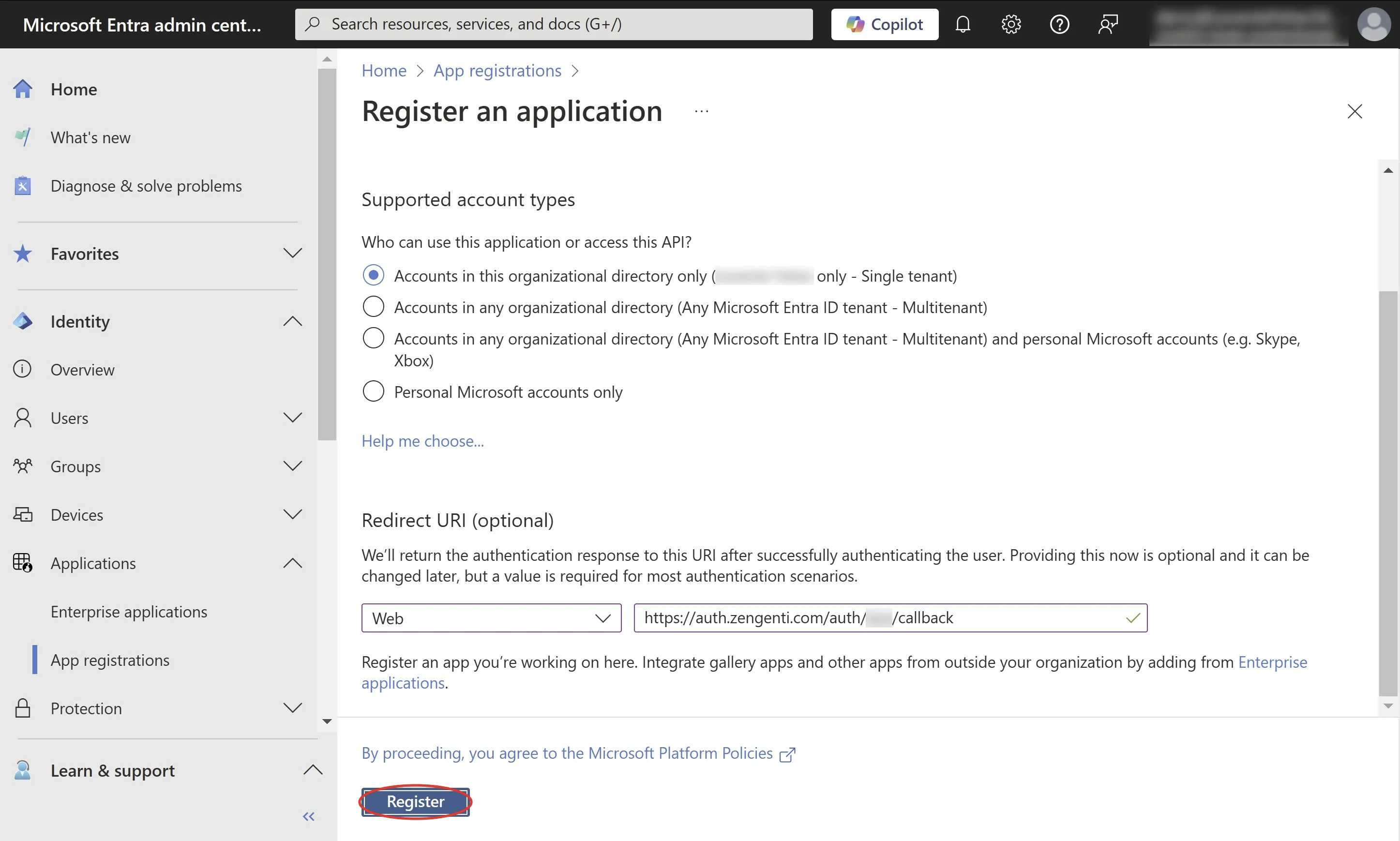
- Give your application a name, for example “Insytful Auth”.
- Select the supported account types for login.
- For the redirect URI, select Web as the platform and type your redirect URL: (https://auth.zengenti.com/auth/PROVIDER_ID/callback). If you’re unsure of your Provider ID, you can contact the Insytful support team.
- Click Register.
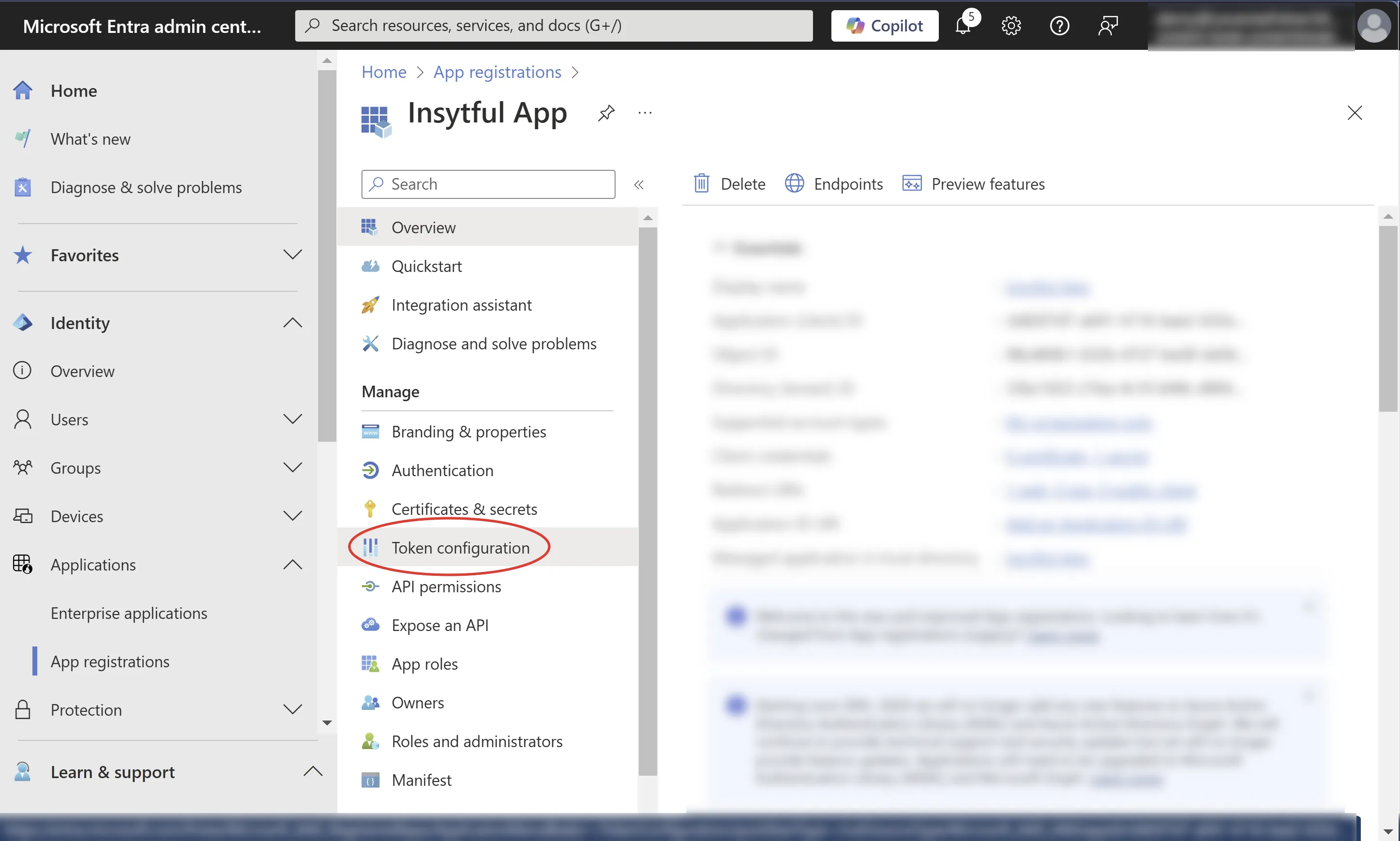
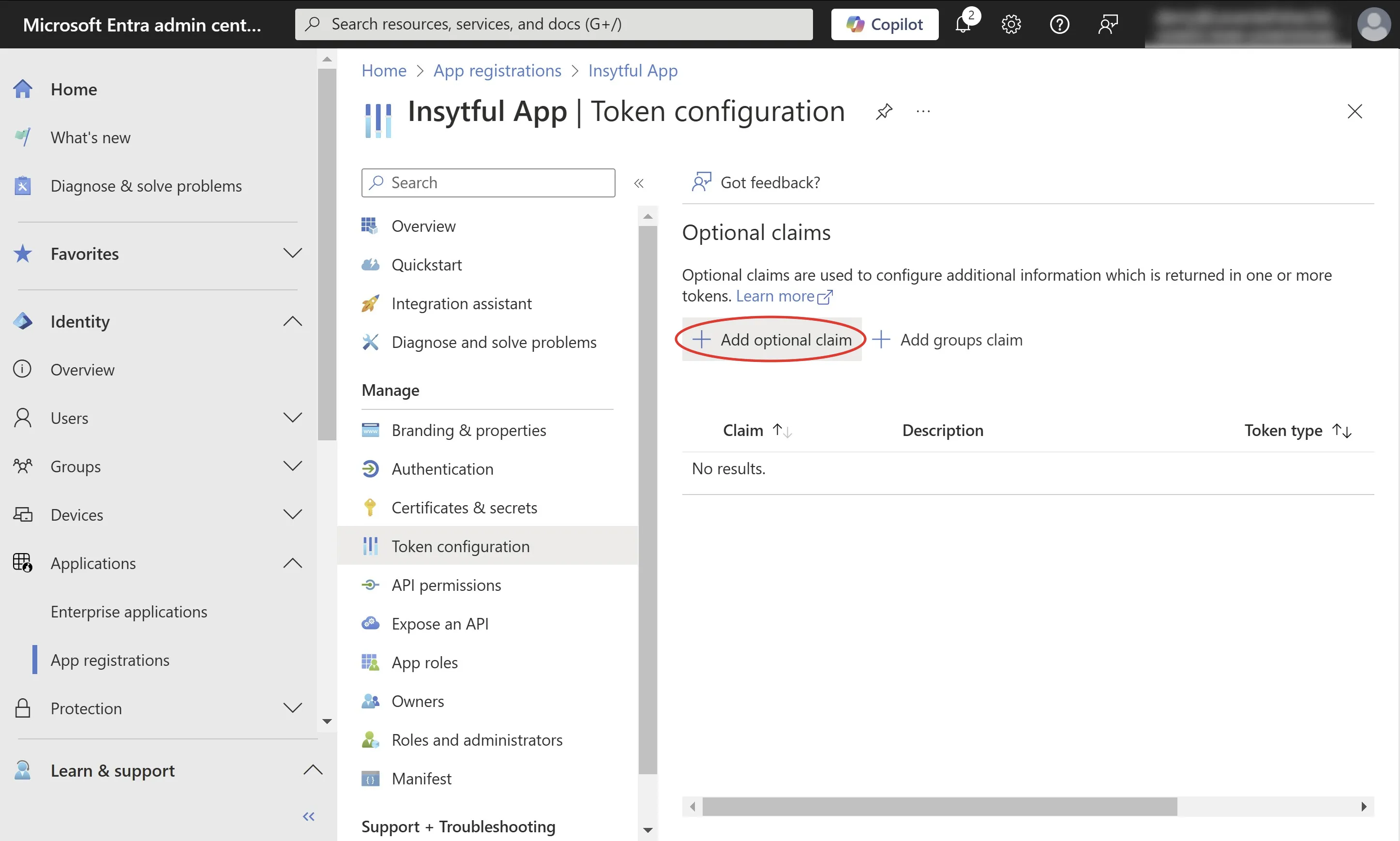
- In the Manage section of the App sidebar, click Token Configuration.
- Click Add optional claim.
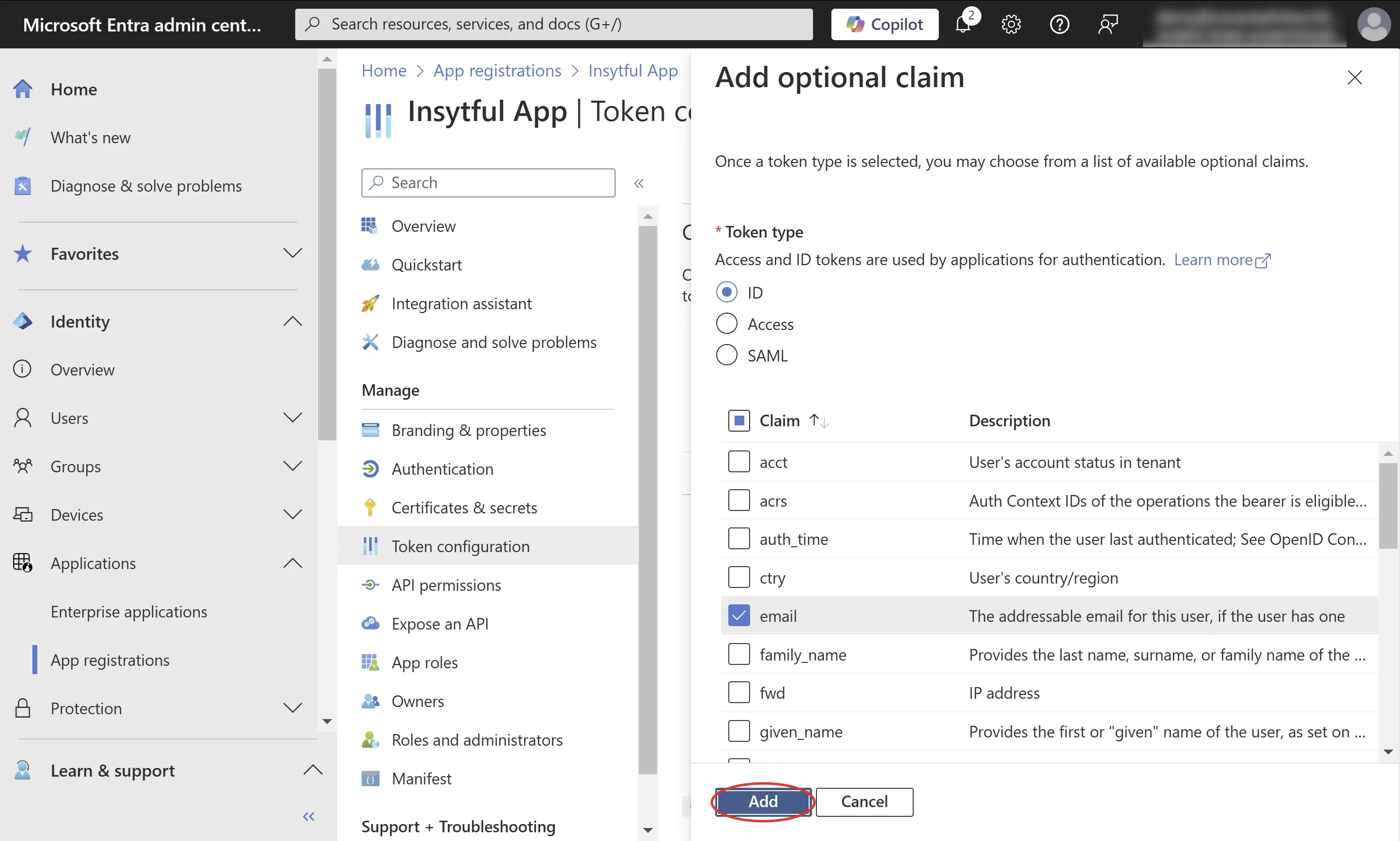
- Select ID, as the token type and add the email claim.
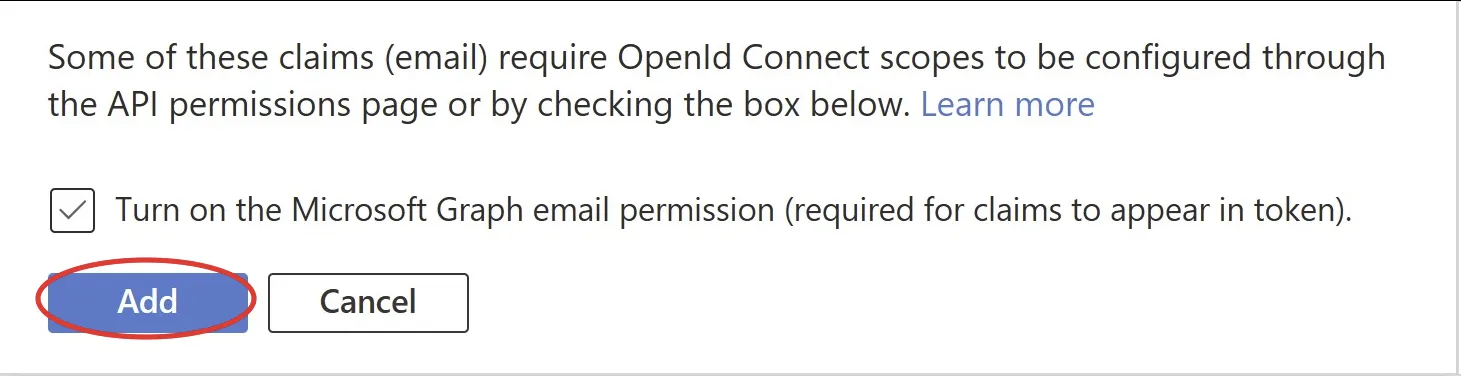
- In the pop-up that shows, check the option to turn on the Microsoft Graph email permission and click Add.
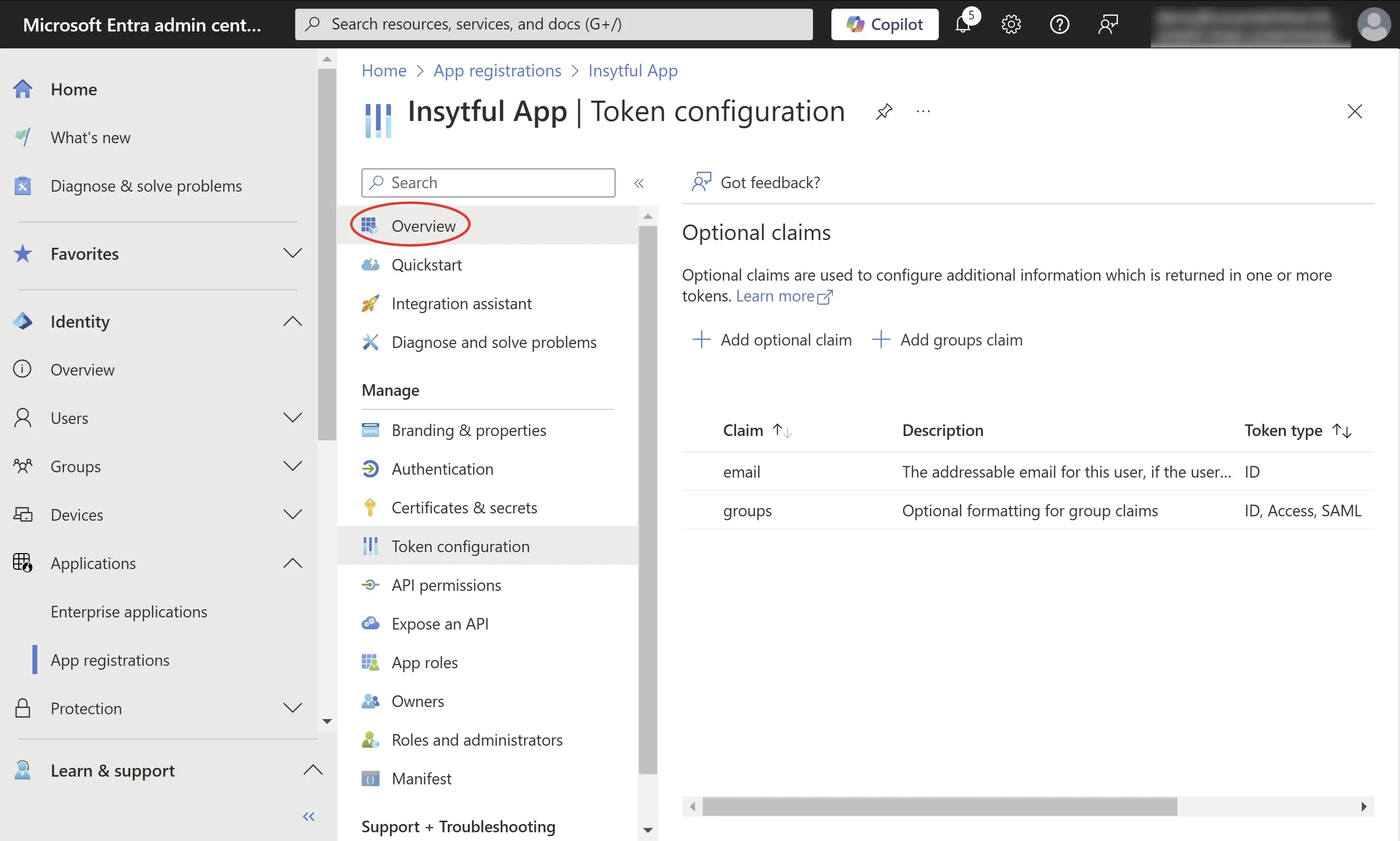
- Optionally, if you want to pass user group information to the Insytful auth (for example, automatically adding users to a specific site when their user is created), add a groups claim.
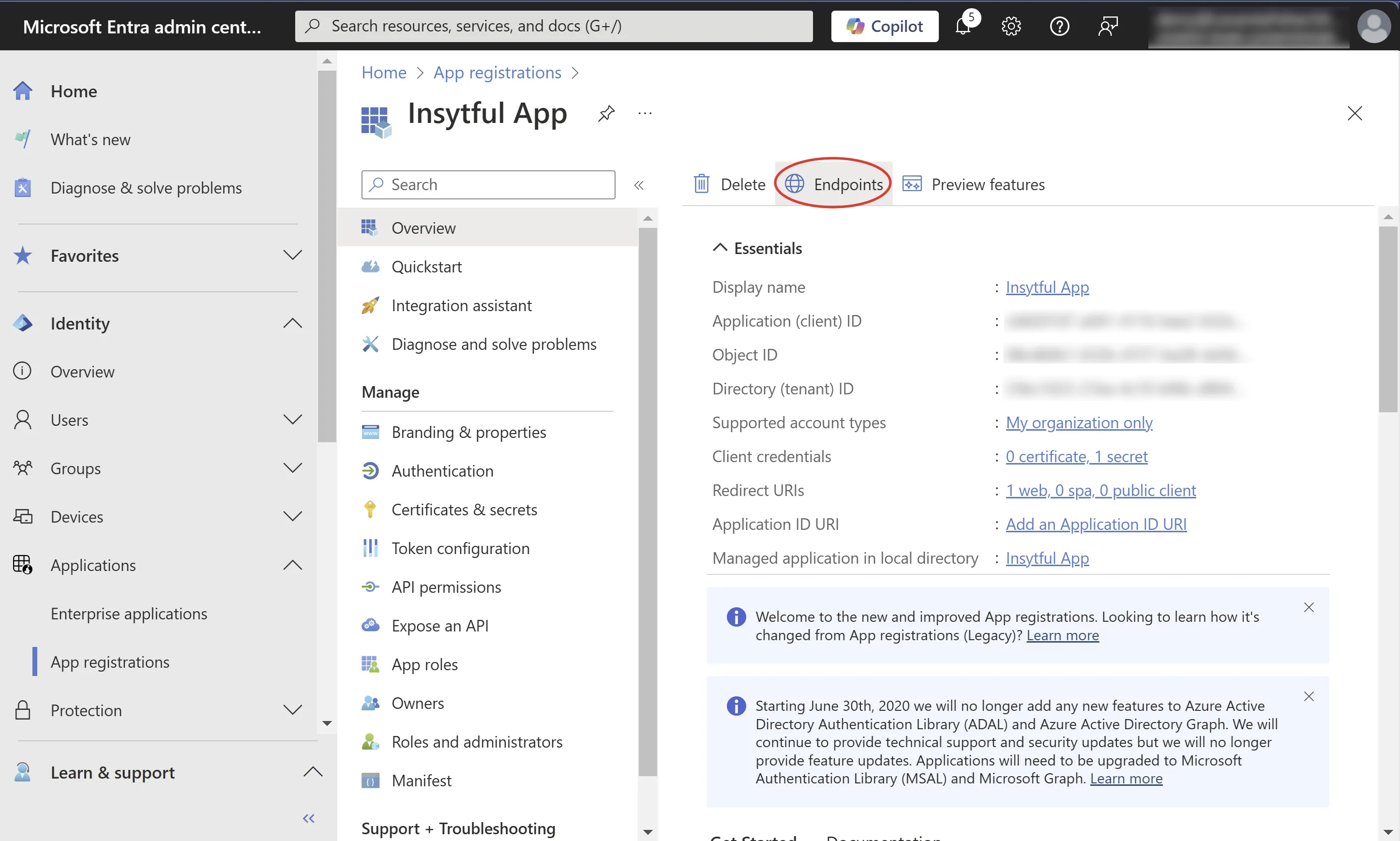
- Return to the overview.
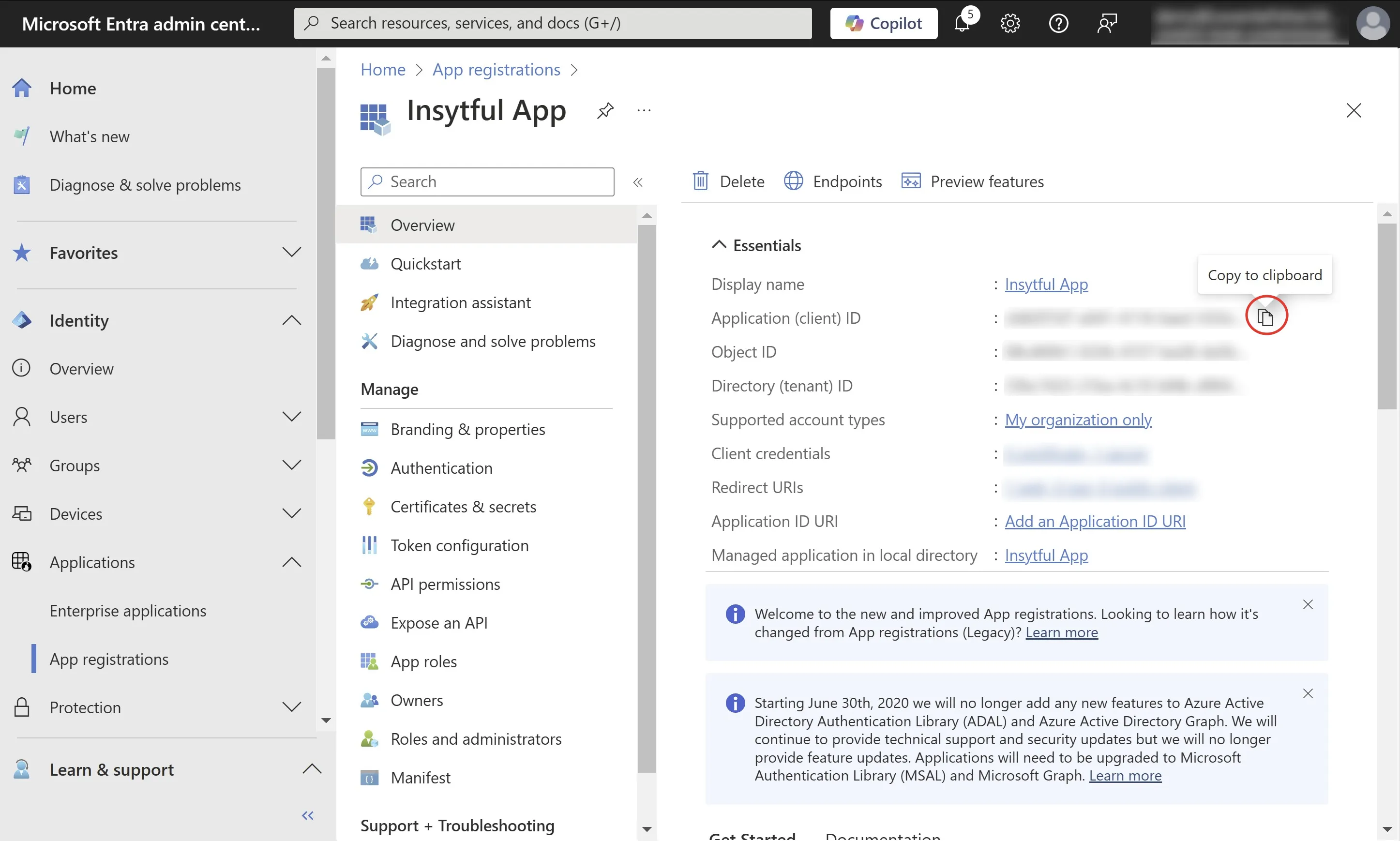
- Copy your Application (client) ID and keep note of it, to send to the Insytful team.
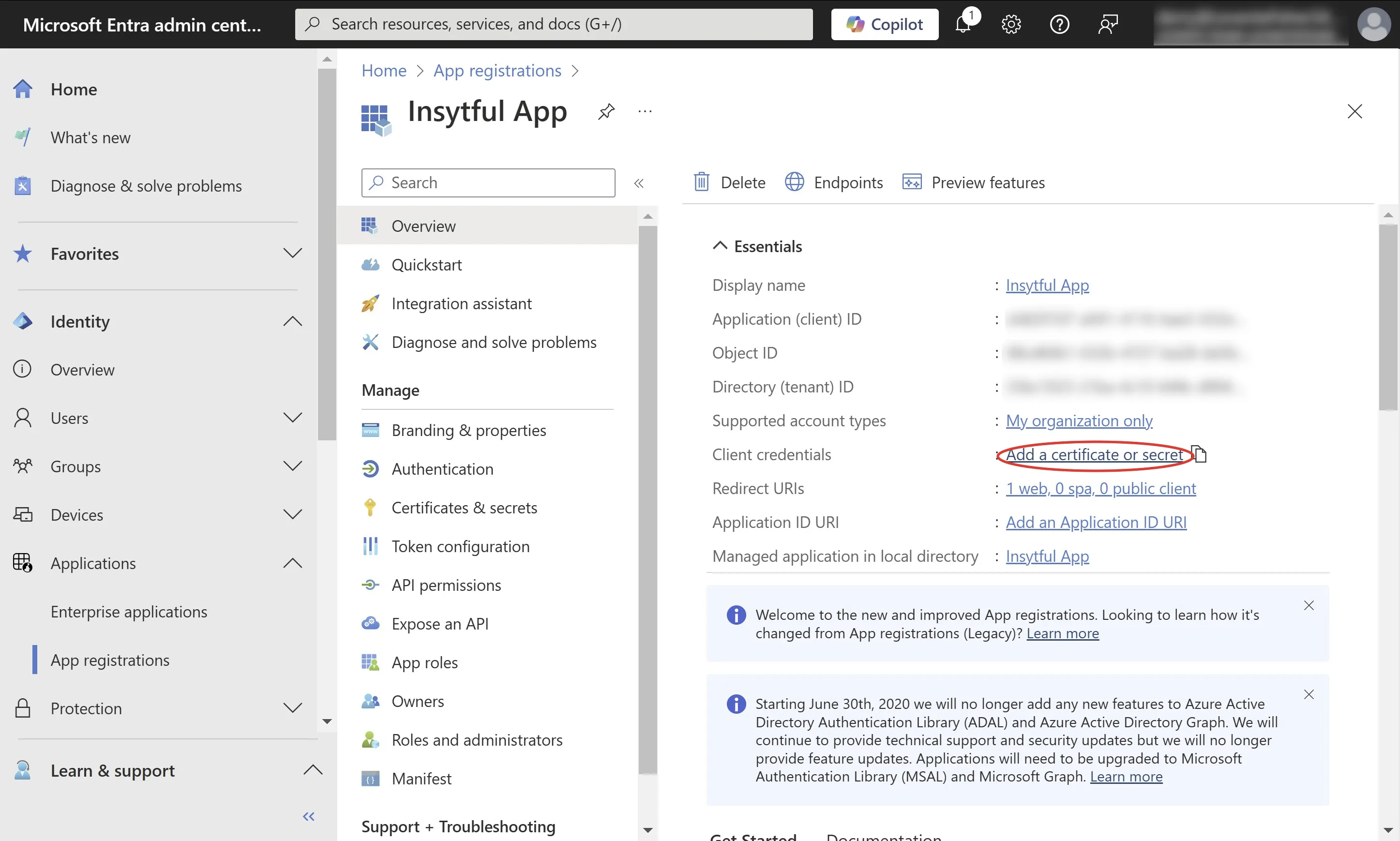
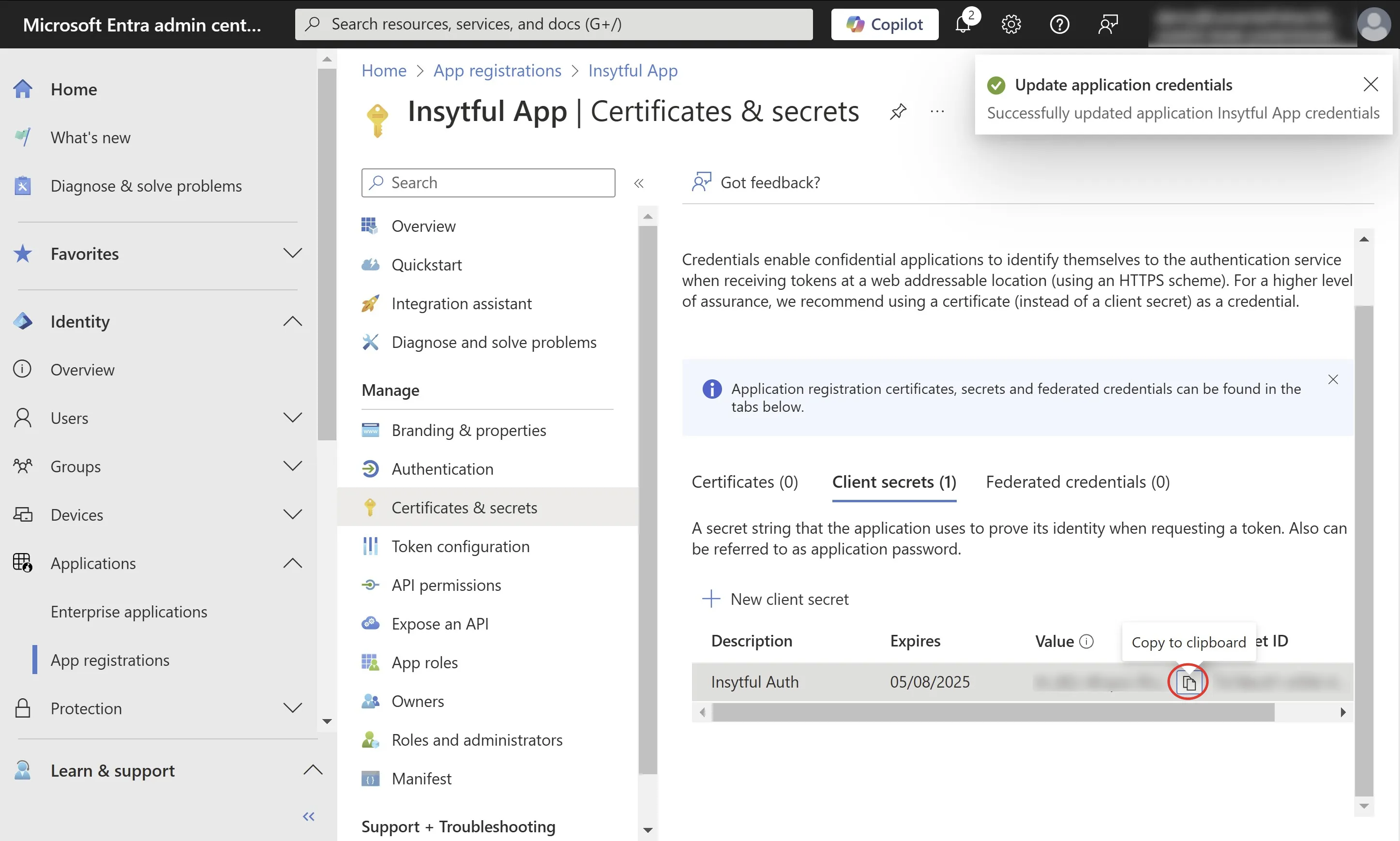
- Click Add a certificate or secret.
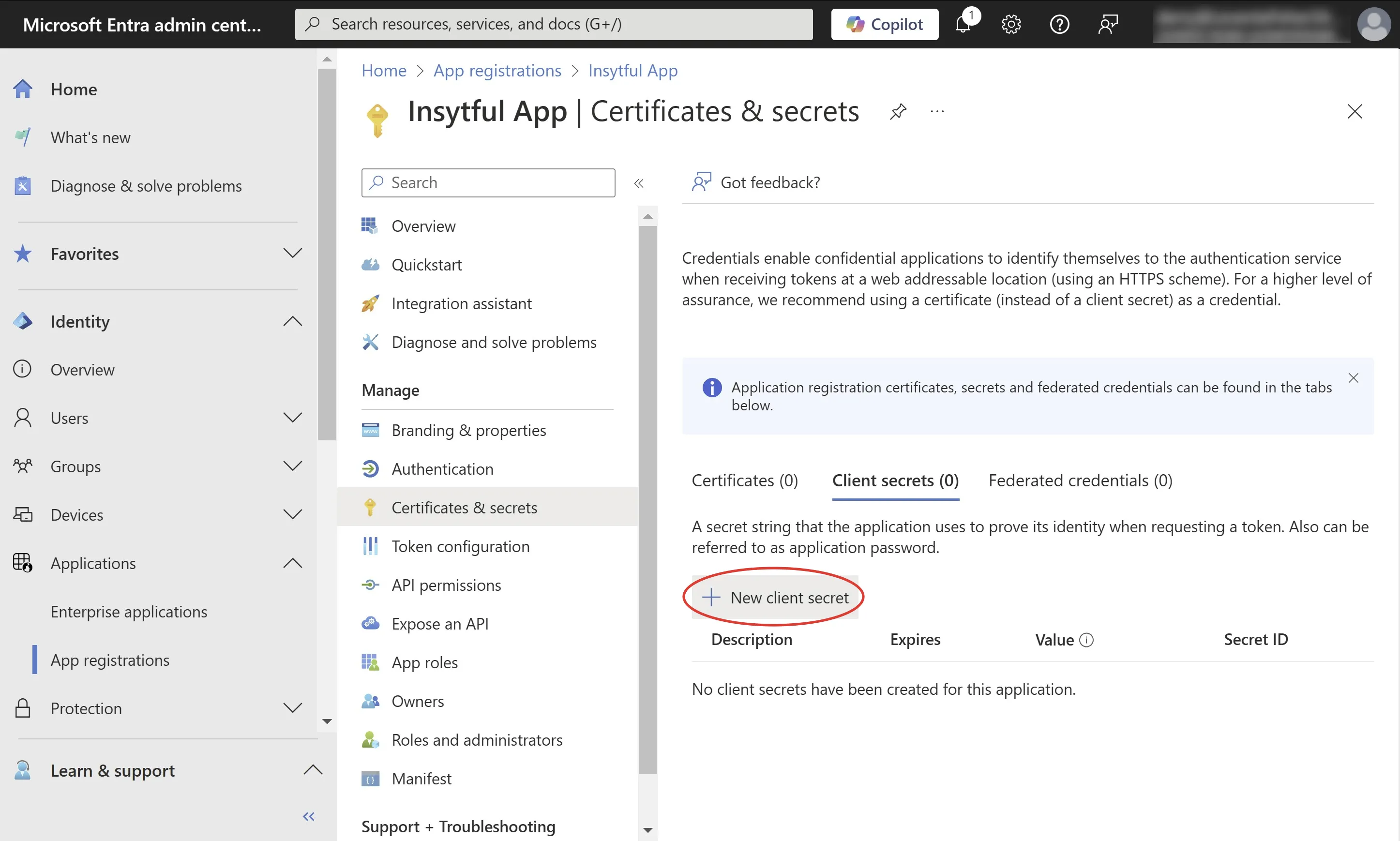
- Click New Client Secret.
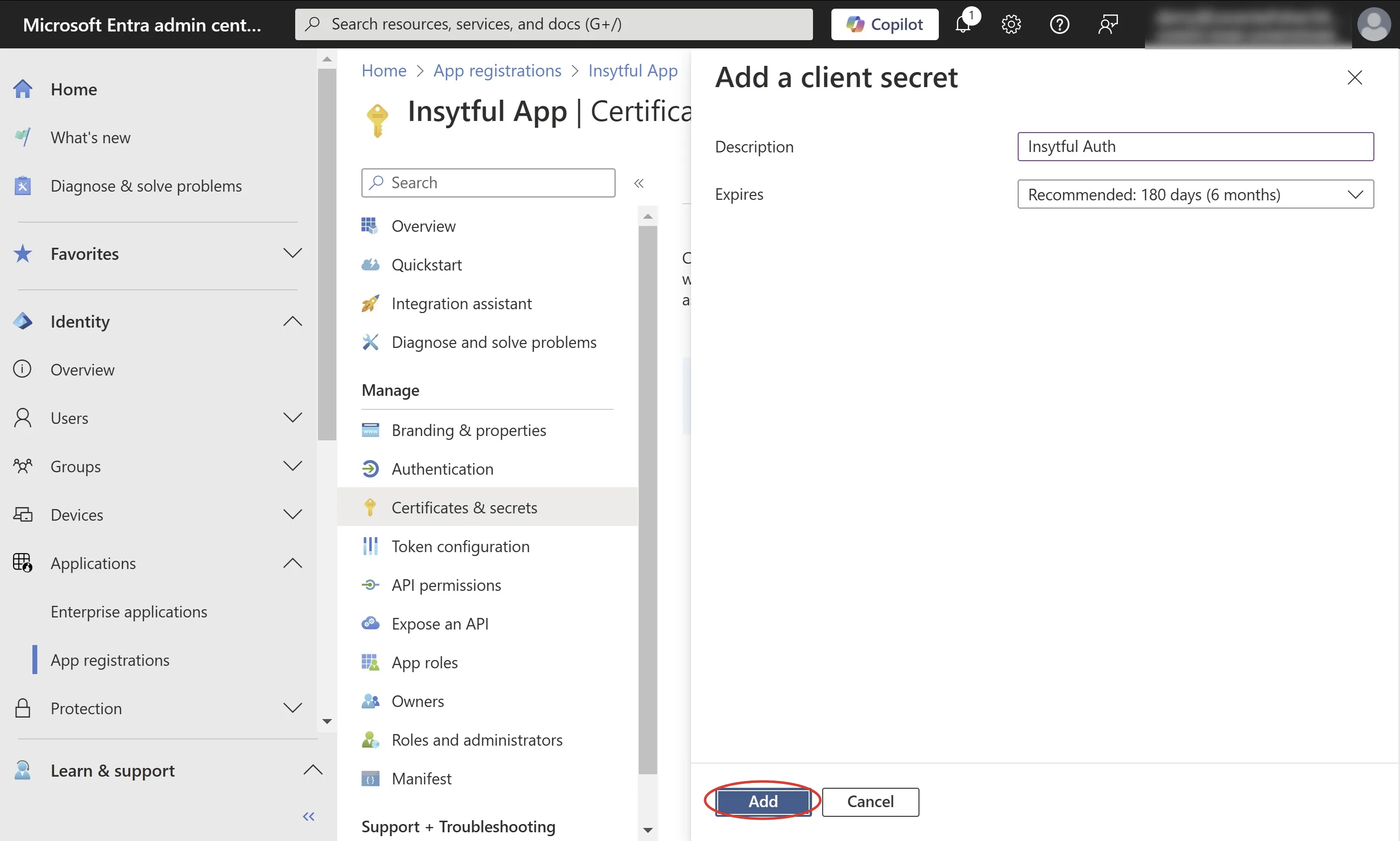
- Add a description, such as “Insytful Auth Secret”, and choose an expiration time (note, you will need to provide a new secret before expiration to prevent downtime in authentication).
- Copy and take note of the value of the secret, to send to the Insytful team.
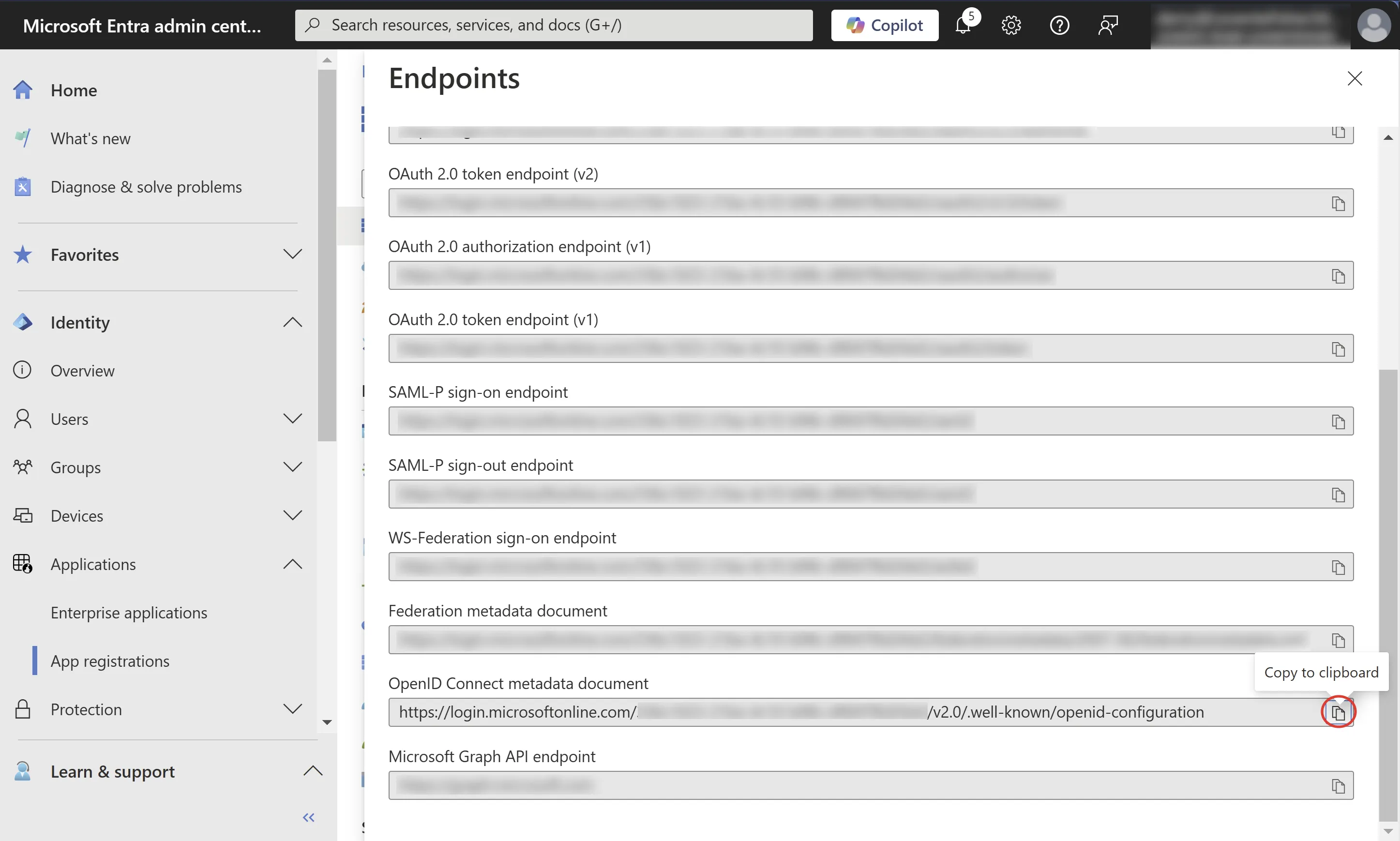
- Return to the overview again, and click Endpoints.
- Copy the OpenID Connect metadata document URL and take note of it to send to the Insytful team.
- To complete the set-up, contact the Insytful support team with your:
- OpenID Connect metadata document URL
- Client ID
- Client Secret.