

Sections
Log in to add to favouritesPage last updated 10 June 2026
Sections in Insytful make managing large sites easier. Organisations can segment sites into smaller sections and create reports for targeted scanning and issue resolution.
Example section configurations:
- Report by department or faculty, such as business and law.
- Report by function, such as news, resources or research.
- Report by language, such as French.
- Report by campaign, such as undergraduates, to target everything under “study/undergraduate”.
- Report filtered by type of issue (only accessibility or content freshness)
Section reports
A section report includes full scan results for each area of Insytful. The reports provide a focused view, with a breakdown of all pages in the section, including failed audit information for accessibility, SEO, performance and content quality.
In addition, the section has an inventory for managing documents, such as PDF and Word, email addresses, and telephone numbers.
Section email reports
Section email reports can be used to share section-level insights with internal teams or external stakeholders. Site admins can add email report recipients in the section settings during configuration, or edit an existing section to add email addresses.
After each site scan, recipients receive an automated email report for that section. The email includes key metrics and a link to a read-only report dashboard.
The dashboard gives recipients a focused view of the section’s performance, including:
- progress over time
- worst-performing pages
- pages with broken links
- pages with misspellings
- individual page details
Permissions to create and view
Permissions can be assigned by role to restrict or delegate access to each section as needed.
Organisation and site admins can create, edit and delete sections as standard. Editors can view the section and the issues specific to those rules.
Creating a section
Sections are configurable using rules. Section reports can be targeted by department, function, campaigns or priority areas.
- In the Insytful UI, navigate to Settings and then Sections.
- Click Add new section.
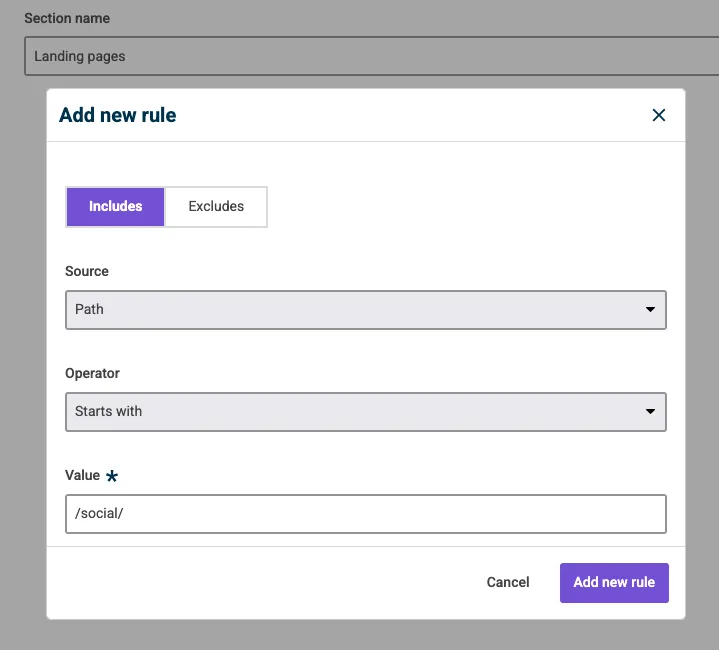
- Give the section a name. For example, Landing pages.
- Add new rule. For example, the source includes the path, which starts with /social/
- Click Add new rule to save your changes.
- Section rules can be as granular as you like. Keep adding rules until your section meets your configuration requirements.
Rescanning a section
Users can rescan sections to update scores between whole site scans.
A section rescan reduces unnecessary data usage and bandwidth required to rescan the whole website, where only minor, section-specific changes may have occurred.
- To rescan a section, go to Sections.
- Choose the section you'd like to rescan.
- Under actions, click the three dots, and choose Rescan section.
Section rescans helps improve focus for teams managing large sites and makes scans more sustainable, reducing system load and network strain.