

Onboarding with Insytful
Log in to add to favouritesPage last updated 14 September 2026
Onboarding guidance for Insytful
Insytful is an accessible site improvement platform created by Zengenti.
Zengenti is a UK-based software company. Since 2001 it has specialised in content management, user-friendly websites and digital experience. Its flagship product is Contensis, a headless hybrid CMS with integrated deployment features. More recently, Zengenti launched Insytful, a platform focused on advancing accessibility, website user experience and performance for every audience.
What we'll cover in the onboarding document:
Once we are finished with onboarding, your team will feel confident using all features in Insytful.
Getting started
Insytful is a single tool to improve the overall user experience of your website.
Insytful checks your website for:
- Accessibility
- Content quality
- SEO
- Performance
- Inventory and documents
Each month, product updates for Insytful are shared on the blog and via email in the newsletter. To see what features are on the horizon for Insytful, check out our product roadmap, where you can also suggest new features you’d like to see.
Accessibility statement update
It’s good practice to update your accessibility statement with details of the tools and auditors you use to ensure compliance. Naming your auditor, their business and URL, along with the tools used, adds credibility and transparency. For example:
While not strictly required by WCAG, this demonstrates genuine commitment, particularly for public sector bodies, universities, and large organisations.
Logging in
Logging in is easy. Once the Insytful team has configured your account, you can log in using your email address and password. For more information, you can also use the getting started guide.
- Use your organisation email address.
- Log in securely.
- If you forget your password, contact your IT support team or system administrator.
Please follow this guidance, for users that want to set up SSO.
User management
Confidently manage users with our help and documentation. Learn how to invite users, set user roles and delete users.
Scan data
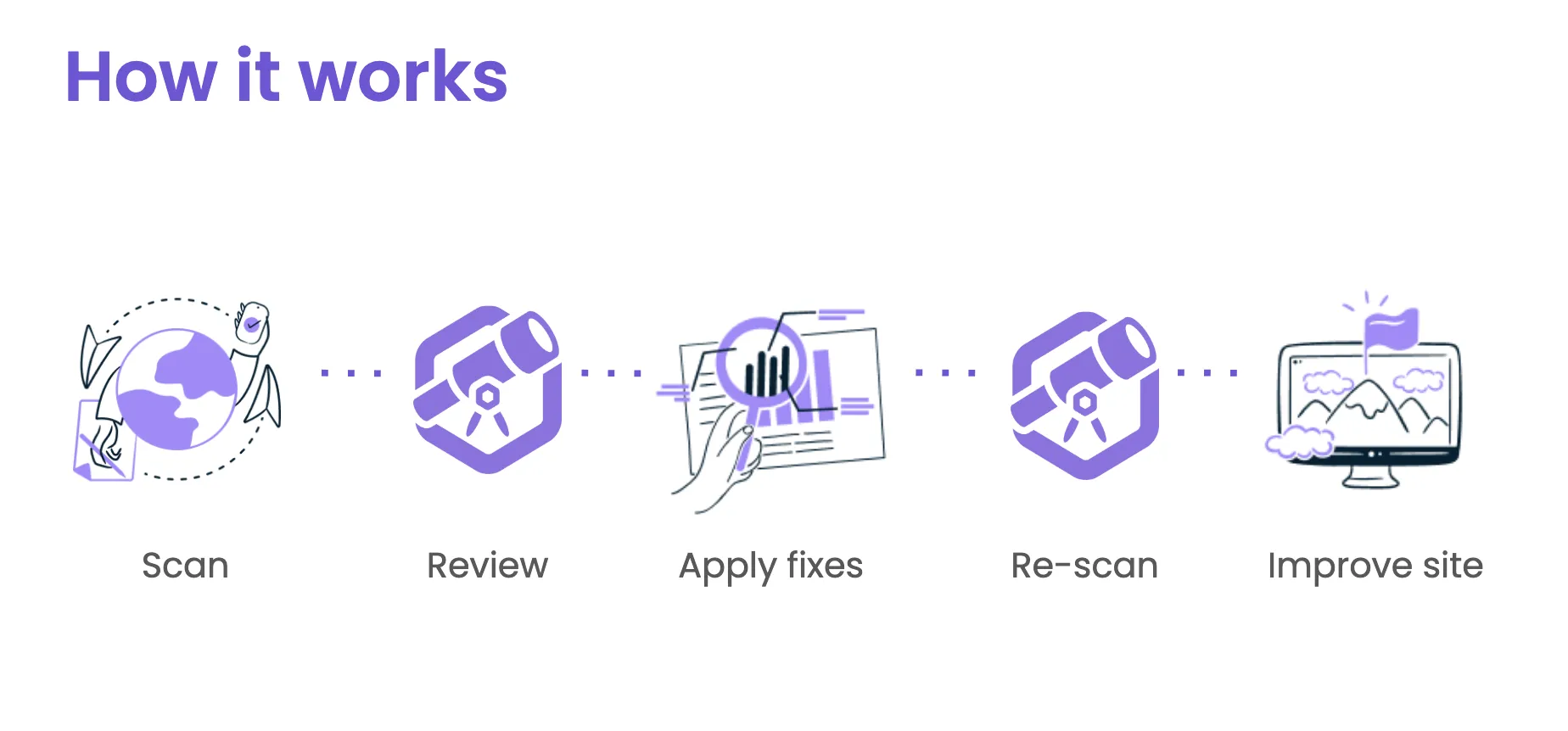
How Insytful works
Insytful scans and crawls your site content to check for: accessibility errors, spelling mistakes, broken links, duplicate content, pages slowing your site down, oversized files and images, inaccessible PDFs and technical SEO issues. Plus, many other content governance checks too. With Insytful, you can:
- See how your site(s) ranks.
- Use the dashboard for at a glance insights.
- Quickly find areas for improvement.
- Watch the number of passed audits increase.
How does Insytful scan your web pages and documents?
Insytful starts a crawl from your site's root URL, any additional roots, and optionally your XML sitemap. Each URL is checked to see if it can be reached and what sort of document it holds, then depending on the document:
- HTML pages are opened in headless Chrome where your JavaScript runs, and the rendered page is analysed for accessibility, SEO, performance and content quality;
- PDFs and other documents go to a separate scanner.
Every link on a page is discovered and checked; internal ones are added to the crawl, external ones are only verified as reachable.
Scoring
Your site score will likely change each time your site is scanned. This could be because:
- Content has been added or removed from your site.
- You have resolved a large number of issues.
- Existing content has been edited which has brought your score down.
- You have increased or decreased your scan limit, so the number of pages scanned has changed.
Each report in Insytful is scored differently. Learn how we calculate your accessibility score, content quality score, performance score, and SEO score in help and docs.
Scan frequency
We try to avoid scanning your site during business hours, with scans occurring monthly or weekly. Between whole-site scans, users can rescan sections or individual pages. This allows you to make a fix in your CMS and see the updated score before the following scan takes place.
Integrations
Insytful integrates with various CMS platforms and third-party systems, enabling seamless monitoring and streamlined workflows. Integrations with Insytful include CMS deep linking, in-app page rendering, Jira, Google's Web Risk API, and Google Analytics.
If there are any tools we don't currently integrate with, we can work with you to build a suitable integration and incorporate this into our development schedule.
Reports
Overview reports
Each report area within Insytful has an overview page. These include information such as:
- Your score over time
- Failed audits
- Manual audits
- Passed audits
- Best practices
Each issue is ranked and listed by its severity in Insytful, followed by the number of occurrences to make it easier to prioritise edits with your team. From the overview page, you can visit individual page reports.
Individual page reports
These reports look specifically at one URL. Within the individual reports users can see the following, at a page level:
- A render of the web page
- When the page was first and last scanned
- Single page scan option
- Edit in CMS button (if deep linking has been configured)
- Accessibility audits
- Content quality audits
- SEO audits
- Performance audits
- Inventory data
- Metadata
Accessibility reports
In the accessibility report, users can see:
- The overall accessibility score and pages scanned by hovering over the tooltip on the graph
- The number of failed audits and occurrences
- Manual audits
- Passed audits
- Best practices
Generally, we recommend that users focus on the failed audit with the highest number of occurrences. These are ranked in the app automatically, so you know which issue to tackle first.
Useful resources:
Content quality reports
In the Content quality report, users can see the same metrics mentioned above for accessibility, plus:
- Dictionary
- Individual report breakdowns for broken links, misspellings and readability.
Useful resources:
SEO reports
In the SEO report, users can see the same metrics mentioned above for accessibility, plus:
- Domain health (These checks confirm that your domain and SSL are in-date and working correctly.)
Performance reports
In the Performance report, users can see the same metrics mentioned above for accessibility, plus average performance stats for your website:
- First contentful paint
- Speed index
- Total blocking time
- Largest contentful paint
- Cumulative Layout Shift (CLS).
Inventory
This area lists all content found on your site and categorises it into the following areas:
- All pages
- All documents
- PDFs
- Word documents
- Spreadsheets
- Powerpoints
- Archives (Includes .rar, .zip and other extensions.)
- Email addresses
- Phone numbers
Sections
This feature simplifies the management of large sites by dividing them into smaller segments. A different team can manage each section, creating ownership and accountability.
For example, you can create a section for different product ranges, blog and resources, events, campaigns, or organise content by a particular topic on your website. The options are endless, making it easier to keep tabs on your content.
Rules
You can set up sections by:
- By including or excluding certain words, for example "community"
- Author, path or metatag
- The operator: starts with, ends with, contains, equals and regex.
- Add the value for example “/help-and-docs/guides”
Settings
The site settings can only be accessed by admins.
- General site settings: See your site settings at a glance, including the API key, scan type and deep link template.
- User management: See users, groups and roles. Set editors or admins in this area.
- Invites management: See who has been invited, revoke invites and the history of the invites
- Sections: The place to slice up your site into individual areas for different business units.
- Dictionary: Check for misspellings and add brand-specific words to your own custom dictionary. Have multiple dictionaries for multilingual websites.
- Integrations: Setting up third-party integrations within Insytful, such as Google Analytics, Jira, and Google Web Risk (for malicious links).
- Organisation settings: See your scan usage, credits and allocation.
- The Danger Zone: Approach with caution. The Danger Zone is a location where you can permanently delete your site and all its associated data.
The Danger Zone
The Danger Zone allows Admins to delete their site. As a rule, most organisations do not use the Danger Zone.
Instead, organisations can switch the account from a paid plan to a free plan, which includes up to 100 page scans. By doing this, your historical scan data is preserved, should you wish to return to a paid subscription in the future.
Before you delete your site, the app will remind you:
- The site will be permanently deleted from the platform.
- Access to the site will be removed for all users.
- All site data will be deleted for all users and API calls immediately.
Next steps
Not sure where to start using Insytful?
Why not get used to working with Insytful by fixing low-hanging fruit. For example:
- Update missing alt text
- Find and fix broken links
- Check for misspelled words
- Add brand specific words to your global dictionary
Keeping in touch
Keep in touch with our team for the latest updates.
Help and support
- If you need assistance, log a ticket on the helpdesk.
- Check the live and historical status of Zengenti services via the Status page
Product updates
- Sign up to the monthly product update newsletter
- Check out the website for new blogs, resources and webinar releases
- Follow us on LinkedIn
- Request to join the Slack Channel
- Join us in person at Zengenti’s annual conference - Velocity!